Your demo has a cast. Show who's on stage.
RoleBadge floats a persona badge — portrait, name, job title — above your macOS screen share. One hotkey and the field technician becomes the supervisor. Your audience sees the switch instead of imagining it.
For macOS 14+ · menu-bar app · no permissions to grant

⌃⌥⌘1–4
"Now imagine you're the supervisor…"
Rooms lose track of pretend roles.
Every multi-role demo leans on narrated role-play, and every audience quietly loses the thread. The system looks the same whoever you pretend to be — so the story blurs exactly when it should land.
The switch is visible
A portrait, a name and a job title, on screen the whole time. When they change, the room notices — no narration needed.
The switch is instant
Global hotkeys swap personas mid-sentence. No window juggling, no slide with an org chart, no "let me just log out".
The demo stays yours
The badge is click-through and stays out of your way. It never steals a click meant for the software you're showing.
Setup to standing ovation
Three steps to a visible cast
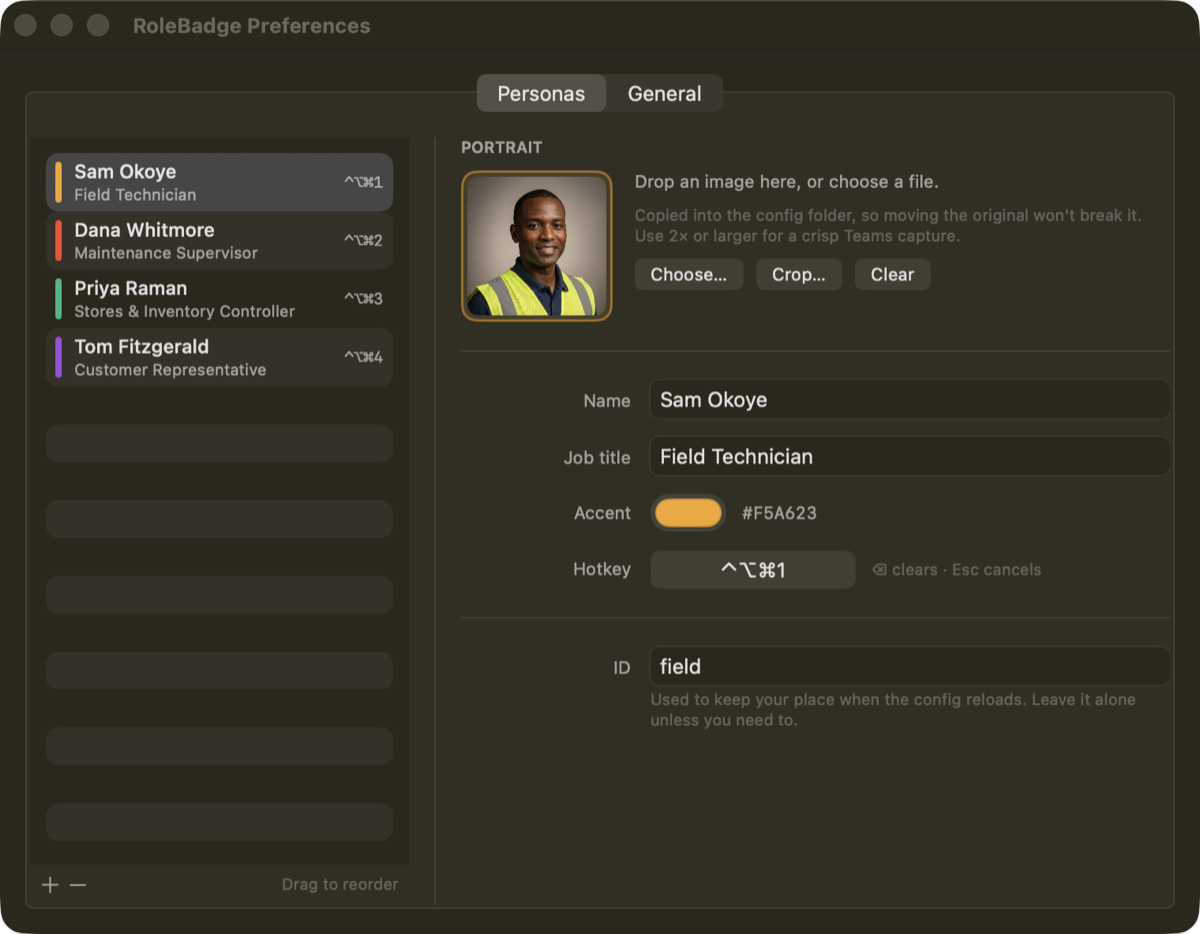
Cast your personas
Add portraits, names and job titles in Preferences. Crop non-destructively, pick an accent colour per role, assign hotkeys.
Place the badge
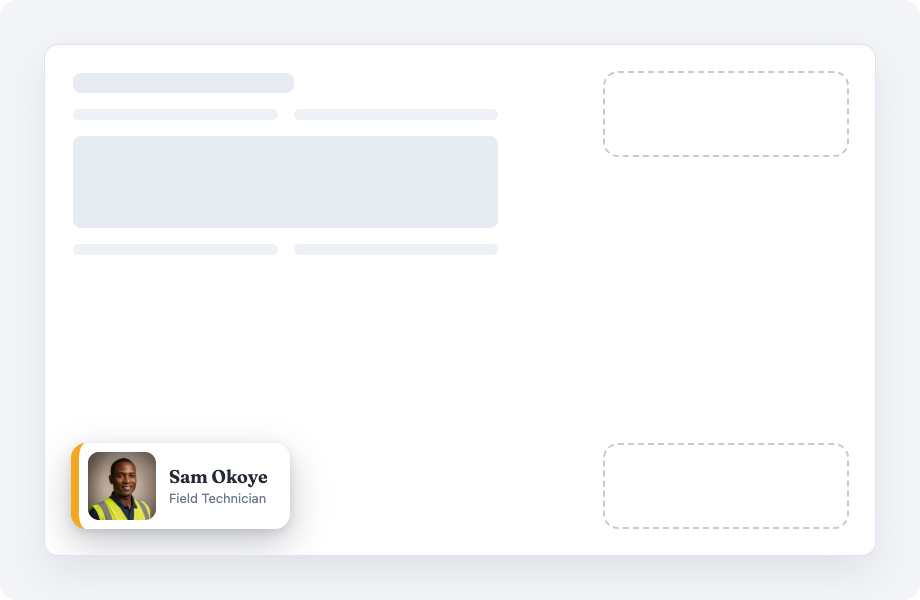
Drag it anywhere, snap it to a corner, size it with ⌃⌥⌘= and ⌃⌥⌘-. It remembers position and scale per display.
Present
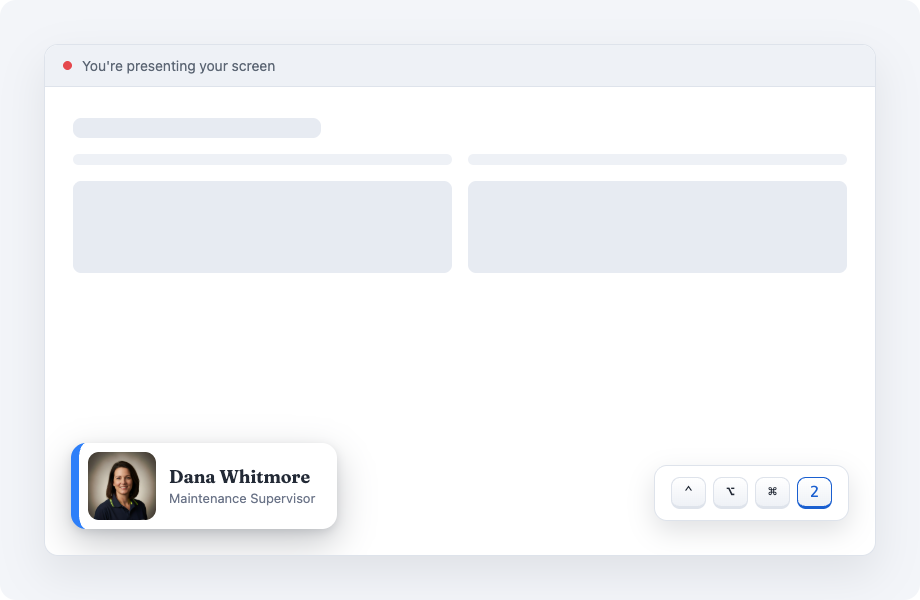
Share your screen and switch with ⌃⌥⌘1–4, cycle with ⌃⌥⌘→, hide with ⌃⌥⌘0. The badge is visible to screen capture by design.
Thirty seconds, no narration
See a demo switch casts, live
Details that matter mid-demo
Built for the moment you're live
No permissions to grant
Hotkeys use the classic system API — no Accessibility prompts, no Screen Recording requests, nothing to re-approve after updates.
Made to be captured
Most overlays hide from screen recording. RoleBadge is visible to capture on purpose — being seen is the product.
Click-through, always
Clicks pass straight through the badge to the app underneath, except while you're deliberately moving it.
Per-display memory
Position and size are remembered for each display. Jump the badge to your next screen with a hotkey.
Config you can read
Everything lives in a plain JSON file. Hand-edit it and the badge updates live; hand the folder to a colleague and they get your cast.
Nothing phones home
No network code, no analytics, no accounts. Sandboxed. Your personas never leave your Mac.
Starter cast included
Ships ready to demo
Four personas, photographed where they work, are included so your first demo works out of the box. Replace them with your own cast in minutes.



Straight answers
Questions worth asking
Why doesn't my audience see the badge?
You're probably sharing a single window. macOS window-sharing captures only that window's own pixels — the badge (and everything else above the window) is excluded by the platform. Share your entire screen and the badge is always visible. This applies to Teams, Zoom, Meet and every other tool.
What permissions does it need?
None. No Accessibility, no Screen Recording, no notifications. Install it and it works.
What does it collect about me?
Nothing. The app contains no networking code at all — see the privacy policy, which is short because there's nothing to disclose.
What does it run on?
macOS 14 Sonoma or later, Apple silicon and Intel.
How do I get it?
From the Mac App Store. One-time purchase, no subscription — buy it once and it's yours, on every Mac signed into your Apple Account. Questions before you buy? Get in touch.
Next demo, visible cast
Stop asking rooms to imagine.
On the Mac App Store. One-time purchase, no subscription.